¶ Overview
The Dynamic Adventure Journal Builder is a module designed to pull text from PDF's of Adventure Modules and format it neatly into Foundry journals. It is not perfect and certainly has its quirks but overall it can create a very functional well formatted reference journal for most adventure formats.
The interface for this module can appear very complicated at first glance, but in practice it is very easy to to put to use once over the initial learning curve.
¶ Importing Rules
This module contains the ability to export/import rules which allow users to share work on projects with anyone that owns a copy of the source PDF.
You may occasionally find that an exported ruleset imports and seems to do nothing. This could be down to fonts.
One of the two ways this module handles targetting is by looking for Font Size and Font Name. Font targetting rules are incredibly easy to use and incredibly versatile, but do come with a risk.
Actual Font names and data are not easily accessible in the PDF text stream. So the parser will assign names based on certain qualities the font possesses at the time it first encounters them. In most cases as long as the order of operations happens in the same order every time, the font names will be the same, But sometimes the names might end up slightly different.
g_d0_f2
g_d0_f9
Are examples of font names the parser will assign. Depending on the order these fonts are encountered, the names may end up having different numbers assigned to them.
If you find yourself importing rules that don't seem to function, you can usually fix them quite easily by going through the rules very quickly, looking for rules which target fonts, and trying to re-target them towards lines of text you know the rule might pertain to. This sounds vague now, but once you have gone through the logical flow of designing rules this will make more sense. Reverse engineering the rules while they are present is fairly easy.
¶ Notes on RegEx
Regular Expressions (RegEx) is one of two main ways this module attempts to build its journals. You can go a long way without using any, but when it does come time to using RegEx there are some quirks you should know about.
¶ Start of Line
A common RegEx function that you will find people referencing is the "start of line" symbol. Which is a symbol you can place in front of a pattern to signify that the pattern occurs only at the start of the line.
^
^[RegEx Pattern]
While looking at your PDF this will seem like the most logical tool to use, but in practice while using this module you will find that it does not work at all. This is due to the nature of the way PDF text is read into the javascript parser. The parser reads the entire PDF as a stream of text. Organizationally the parser cannot differentiate the start of the line from any other line of text.
Note that this should not be confused for the use of the "^" in patterns to remove a string from your pattern
[^Pattern]
Which will work fine.
¶ Getting Started
The modules main functionality can be launched fron the Foundry "Journal" Tab by clicking "Build Adventure Journal". Once there you will be presented with a window that will let you build our rules and see a basic result as you do.
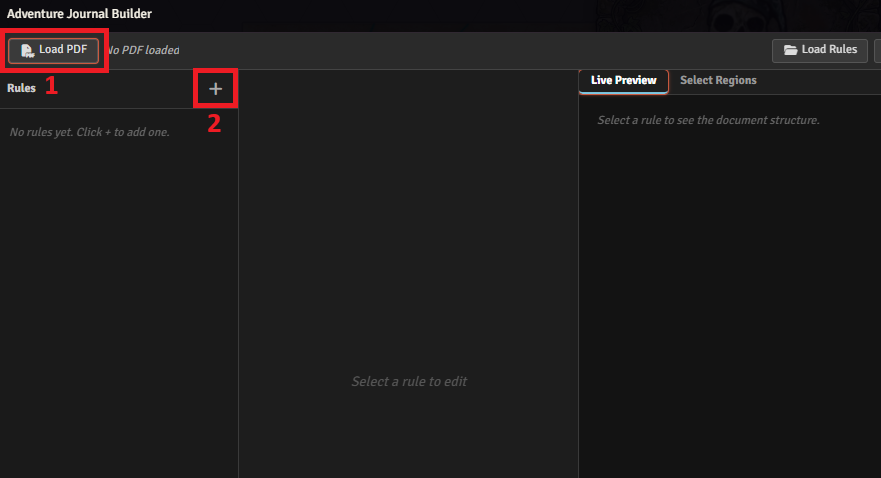
Within this window the first step is to click "Load PDF" and select the PDF You want to work on. This will load a PDF from your Local machine. After you load a PDF you are going to click the "+" Button in the rules column to create your first Top Level Rule
¶ Building Structure
The first major decision you have to make is how you want to break down your Journals into pages. The top level rule is always the "new Page" Rule which tells the module When to create a new Journal page, vs continue to put text into the existing journal page.
Depending on how dense the information in an adventure is you may want to Divide each "Room" in a dungeon/adventure into its own page, or you may want to divide each "Zone" or "Floor" into a new page. Read about New Pages
¶ Start Small
When getting started with your top level rule it is recommended you start off with a small slice of pages to use as an example. You can always change your Page Range once you have your basic test cases done. Limiting the initial page ranges to 3-4 good example pages reduces the amount of clutter you have to deal with and makes it easier to find the targets you care about.
Also: start with Font targets. RegEx is for fine tuning. Don't use it unless you have to.
¶ Refine and Disable
due to the nature of text parsing and formatting some rules can end up being more greedy than other rules. As such you will occasionally get yourself into a situation where a rule that otherwise works with all other rules, will by itself lock out other rules from functioning properly.
It is recommended that you work in broad strokes first. Building Your pages, then top level headers, then progressively lower level headers, and ending with text formatting rules. If you feel like certain rules are being overly zealous it can sometimes help to disable lower level rules, to let more top level rules process first, then try re-enabling them.
This is usually not a problem however.
¶ PDF Regions
Font/Regex targeting rules can only take you so far. Ultimately you very frequently will be fighting against certain unavoidable text annoyances within a book that will sneak into your text and create problems for you. Prime examples of these include:
- Page Numbers
- Footers
- Labels on maps
- Monster statblocks
There is no end to the types of insignificant text you'll find in the middle of otherwise valuable text that ends up mucking up the flow of your journal design. To combat that we can draw regions on the PDF to tell the module what text we care about and what text can be excluded.
Regions are fully optional, and do end up taking a bit more effort to set up, but can often be the difference between 'Well this worked OK I guess' and "Now I have an awesome reference journal in foundry"
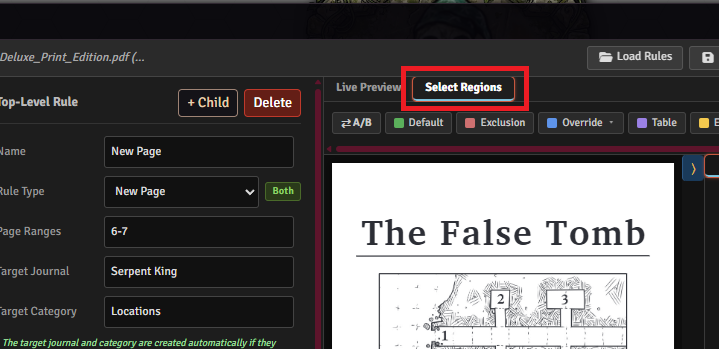
To set up Regions you will switch from the "live Preview" tab to the "Select Regions" Tab. Note that you must have an active "new Page" rule with a valid page range to begin setting up regions.
¶ What are regions?
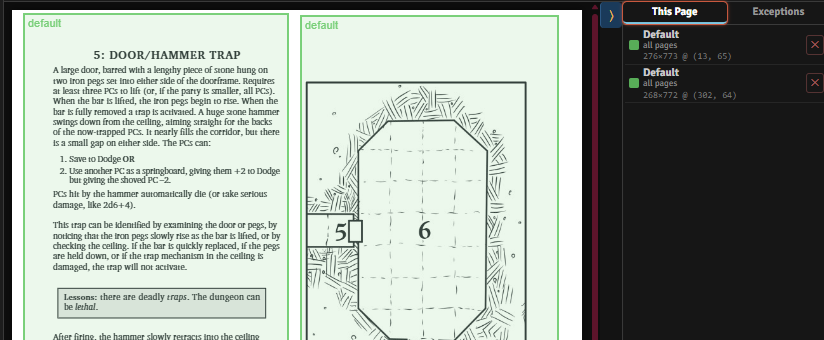
Regions allow you to draw region boxes of various types over a page preview of the adventure pdf you are working on. These boxes tell the module what sections of the page you care about and what sections you don't care about. Any text that is not covered by a region is not included in your text stream for your rules.
In practical term, You will create regions surrounding the main text of your pages, while leaving out the parts of text that aren't important (looking at you page numbers)
Additionally: you can have multiple regions all drawn on a single page. The order they are drawn will tell the module which order to interprete text in. Often PDF's with multiple columns can end up presenting text in the parser in an out of order fashion, by drawing two regions on your page, one for each column you can tell the module exactly what order the information should be interpreted in.
¶ Region Tools
There are multiple types of tools to help define regions in your PDF. Each has a specific use, and by making use of them you can create very clean results that will polish your parser results into perfection.
¶ Default
This is your basic region rule. In most Adventures every page has a very similar format. Very often it is either one or two columns of text that all fill up roughly the same amount of space. The Default tool is for these types of pages. Whatever regions you draw using the "Default" tool will be automatically repeated on all pages in your page range(even if you later update the page range). You can draw multiple default regions on a single page, and on every page those regions will be reproduced in the same order, and text will be processed in that order.
¶ A/B Mode
Due to the nature of physical media, the margins of certain PDF's can be slightly different depending on if the page would be on the left side of the spine or the right side of the spin when printed in a book. This can create situations where the spacing of the text can alternate between two positions which could cause your default rule to be slightly wrong in some places.
A/B mode creates an alternating pattern. By activating it it will split your default region tool into "Default A" and "Default B" You will then drawn one or more "Default A" regions on one page, and "Default B" regions on a second page. These regions will then alternate which page gets which rule from then on.
¶ Override
As much as authors may stick to a certain pattern when building their books, there will always be exceptions to this. Starts of new area's, or some page that is singled out for some other reason. Exceptions to the rules happen. That is when the Override tool comes in.
By Selecting the Override tool it will open a dropdown, by default you will have the option "Draw new overrides" By selecting this you have activated the override tool and can draw the correct regions onto the page. A page with an override region present will automatically ignore the default regions on that page. You DO NOT need to erase or move the default regions. The Override tool handles the logic for you.
¶ Override Templates
Sometimes there are specific types of pages that are exceptions to the default rules in the same way every time. Pages that introduce a new area or floor are a common example of this. You may find yourself drawing the same 2-3 override regions multiple times. In these cases you can save an existing overriden page as a "template" by clicking "Save overrides as template" from the region list on the right hand side of the page.
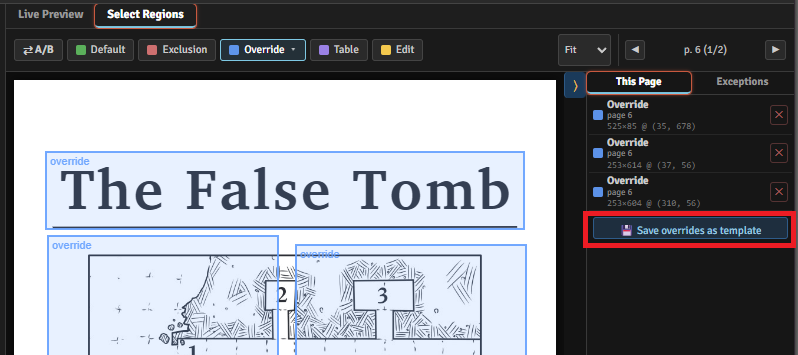
Once a template is saved it will appear in the "Override" dropwon below "Draw new overrides"
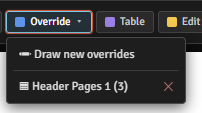
By clicking it it will instantly duplicate the saved Override regions.
¶ Exclusions
Sometimes a default region covers the text you need perfectly, but there is something in the middle of it that is causing problems for your text streams. A prime example of this is when a map is inserted in the middle of a page that has Points of interest marked on it. These points of interest are often PDF text overlaid atop an image and you end up with random "A", "B", "C", "D". Or "1", "2", "3" in the middle of your parsed text.
Rather then overriding the entire page and redrawing multiple regions, you can instead simply draw an exclusion region over the area you want to remove, which will case the parser to pass over that text completely.
NOTE: Only images that have actual text over them need to be excluded. Many pages have art that is just an image. These images will be ignored by the regions anwyay. As long as it isn't presenting text, you can safely leave things be.
¶ Table Regions
The "table" Region is a special region that can be used to draw over text that appears as a table. You do not have to delete or override any text that is covered by another region. The table region will work around all other regions drawn on a page and mark the area covered as table text. Once marked it will automatically feed this text into Table Rules that have the "import Table Regions" checkbox checked.
¶ Rules
¶ Siblings vs Child Rules
Rules form a hiarchy as they process data. Sibling rules are processed in order accross all text looking for the next higher level rule, while child rules only get processed on text underneath their parent rule.
In many cases all of your section rules might be siblings to eachother, even if they have different heading levels, while "Format Text" and "Table" rules will almost always be children to a section rule. Creating "new Section" rules that are children to higher level New Section Rules often seems like a good idea, and can sometimes be very useful, but it may also cause you confusion in cases where a bit of text you assume should be covered by a section rule is missed because the PDF skipped a heading level.
¶ New Page
New page acts as your top level rule. The New Page rule is your primary organizational point. It creates the logic of when a new Journal Page is created. Each time the font/regex pattern that is defined in this rule is encountered it will create a new Journal Page and starts writing into that page.
Depending on the type of content you are parsing you may have a single top level "new Page" rule that covers the entire book, or you may have multiple New Page rules that each cover different sections. You may even have multiple "New Page" rules that cover the same pages but attempt to pull out different information from those pages. You can be as broad or as fine grained as meets your needs.
When setting up a new Page rule there are four organizational decisions to make.
¶ Target Journal
The target Journal Determines which Foundry Journal data parsed by this rule will be put into. You might have multiple top level new page rules that cover different sections of a book, that all put data into the same Journal, or you might choose to have all of our different top level rules put their data into Separate journals.
¶ Target Catagory
The target Catagory is an organizational option that will create a Catagory within the Foundry Journal to put new pages into. This is helpful if you are using a single Target Journal for all of your rules.
You may have a Catagory for "Locations" and another for "Factions" or perhaps a catagory for "Floor 1" and "Floor 2"
¶ Page Ranges
Page ranges help you divide up your content. You can, if you want, simply put page 1-100000 or whatever your page count is in a single rule and call it a day, but this will usually not give you a very good result. Stop to consider what information you actually care about, and how it should be organized.
For example: you seldom need the cover page, or your table of Contents. Those can be removed from your page count basically every time.
Additionally you may want different rules with different page ranges for the Introduction/GM Information for the adventure, vs the actual adventure/location text. You may want a Separate rule for floor 1, vs floor 2.
¶ New Section
The new Section rule type is one of the main staples of the adventure journal builder. This alone can get you very far in creating a readable Foundry Journal. Each new section has a section called "Output Formatting" which allows you to customize the way your targetted Text appears
¶ Heading Level
This allows you to set the heading level that will be used in the Foundry Journal for the targetting text. Using this you can create multi layered foundry journals simply by targetting significant text within the adventure journal and determining what level it should be listed at.
¶ "Additional Formatting"
This is a slightly more niche option, but allows you to transform the targetted text In different ways. This can create a List, Create a block quote, Code Block, or even Secret text.
Note that this is fairly limited as it is specifically targetting the text that matches your patterns. So if you are targetting specific font patterns it will usually work on a very limited selection of text.
¶ Only break on sentence boundary (.!?)
There are times when certain bits of text contain additional font sizes, or regex patterns that otherwise might interupt what would be a paragraph of text. This checkbox attempts to link area's of text together that have not ended with a firm bit of punctuation. If you are having a section of text broken up in a way that you cant explain, checking this box is your first step to a solution. Note that this does not solve all problems.
¶ Paragraph Detection
Text stream parsing is not an exact science. There are a lot of different things that go on in PDF rendering that can break up text unexpectadly. This is just another way to attempt to squish toext back together that seems like it should stick together. Either by looking at line gaps, indents, or both. This option more then anything else is a "Try it and see if it helps" situation. There isn't an exact science to telling when it will be useful and when it will not help.
¶ New Collated Section
This is a more "Greedy" form of new section rule. This rule type can be used when you have a section of text that you want collected under a header, but does not have a clear header within the PDF that you would use to delimit the text. Instead of targetting a header it targets a block of text, and allows you to then set a header that text will go under.
¶ Section Example
SECTION NAME
Some reasonable text that might go into a section.
In a normal section you would target "SECTION NAME" and the text under would be put in as the body of the text. but in cases when "SECTION NAME" is not present, but you still want the text, you can instead use a collated section rule to target "Some reasonable text..." and then add in the heading "Section" to hold text.
Note that this rule can be tricky to target the right amount of text. it is recommended that you do this as a final finishing touch after you've added all your main dividing types.
¶ Format Text
Format text is pretty simple. It only allows Regex pattern targetting, and allows you to apply basic formatting options to that text: Bold, Underline, Indent, Line return before the pattern, line return after the pattern.
This is used most often to target specific repeating words that are using at specific types to create information.
Treasure: 3000gp
As an example, we might target the word "Treasure:" then mark it bold, and add a line return before and/or after to help break up the text.
¶ Tables
The table rule attempts to identify tables from the text and format them correctly. On its own this rule is fairly tricky to target. it requires a parent rule above it that will help lock in the section as a table. It is not recommended you use this rule raw if you can help it, as it can create headaches.
¶ Import table Regions
The "Import Table Regions" checkbox works alongside Table Regions) to properly display tables. This checkbox will means the table rule will only show table text marked by a Table Region in the Select Regions tab, and will get its number of columns from that region.
Note that Tables rules are not for a single table. You can have multiple table regions all feeding their results into asingle Table rule. The table rule's placement in the hiarchy simply tells the parser where in the hiarchy to insert the table text when it would otherwise be present.
¶ Remove Section & Remove Text
The last two rules are slightly redundant in the current version of the Journal builder. These rules target patterns to remove either entire sections of text, or remove specific lines of text. They were originally created before the PDF Regions tools were made, and were intended to help cut out text that otherwise could not be avoided. They still may be useful if you have a PDF that has easily targetted sections you want to skip, and may save you some time from drawing Exclusion Regions on your PDF repeatedly, but it is possible you may never need to use them.
¶ Targeting Text
There are two main ways of dividing your text. Both have their uses. I've found that 80% of the time you can simply use font Targetting rules, but there are times when adding RegEx to the mix can give you the extra layer of granularity that you need to really polish your results.
¶ Font Targeting
Font targeting divides text in the way it is organized within the PDF itself. In most adventure books the pages and paragraphs are very cleanly divided into different headers of different sizes. Authors usually have their own set of design principals which dicatate when certain fonts/sizes are used. Font targetting lets us target those rules the author is already using, to then produce our own rules.
If we know that every Room in a dungion starts with a header that is size 30 font, then we can easily make a rule that targets size 30 font, call it "New Room" and call it a day.
¶ RegEx Targeting
Sometimes we need more fine grained control. "Important Information:" might exist that is the same size/font as other text on a page, but has a simple pattern with a colon at the end that tells us its important. We can use RegEx targetting to cut that pattern out and build our rules around that when necessary.
¶ Live Preview
The live preview tab is going to show you a raw list of the entire text stream being pulled from your PDF. The Live preview will show you only text drawn as part of your current top level rule. It will show you a rough approximation of how your text is being organized based on the rules you have set in place, as well as what rules are being applied to what blocks of text.
You can click any text In the live preview to bring up a context menu which will display the Font Size, and Font type of the selected text. This select large area's of text that match, not just single words. From this context menu you have two options: Add to Rule, or Create Rule
¶ Add to Rule
Clicking "Add to Rule" will add the displayd "Font Size" and "Font Type" to the font Targetting rules of the currently selected Rule. This option is used to overwrite an existing rules Font rules with new values. It is often used to add rules to the top level "new Page" To determine which font rule sare used to divide text into new pages.
¶ Create Rule
Clicking "Create Rule" will add a new child rule to whatever the selected rule is, using the selected text's Font Size/Type as Targets for the rule. This is the easiest way to start slicing your text into sections. Go through your live preview and select each main header/significanct type of text and create rules layered as you'd like to organize them. From there change their Rule Type and Heading Level to meet your needs

¶ Rules json
¶ Save Rules
The "Save Rules" button can be used to export a json copy of the current created rules. These rules contain only the text that you have specifically typed, and not any PDF Text. Regions are saved as X,Y Coordinates in reference to page numbers, and font rules are generic. Unless you have specifically created regex rules that are copy's of existing text, nothing in these rules files should be copywritten material, and should otherwise be distributable.
¶ Load Rules
Loads previously saved rules can be loaded from json files to resume working on previously interupted work, or to import rules that others within the community have made and distributed. As mentioned above, these rules should contain no copywritten material unless the person that created them specifically included it. All rules should be generic in nature, and do require a copy of the PDF in order to reference to get the actual data.
¶ Build Journal
When you think you have everything in place, or if you want to do a test run you simply click "Build Journal" this will process all rules and create the journal. Depending on the size of your PDF and the complexity of your rules this can take some time, you will get a foundry message when the build is complete.
NOTE: Clicking "Build Journal" does not close this window. You can run a test run to see what the journal will look like, and the journal builder will remain open. It is still a good idea to save a copy of your rules semi-regularly.
¶ Non-Overwriting
The jouranal build does not overwrite existing journals with the same name, but due to the nature of how this module constructs data it also can't intelligently create a new journal with a numeric value or something along those lines. It relies on writing into an existing journal every step of the way as it completes its work. As a result if you have a journal, Either existing in general or from a test run, that has the same name as the journal you are targetting in your rules The Journal Builder will simply add more content into the existing journal blindly. It is important that you either delete, or rename existing journals that you do not want merged.