¶ Overview
The Dynamic Item Builder is a module designed to scan through PDF tables and build rules to import tables into foundry items. This process is not perfect but it is highly flexible and can get you most of the way to a complete item import for most books.
GitHub Repository
Foundry Page
Youtube Guide
¶ Getting Started
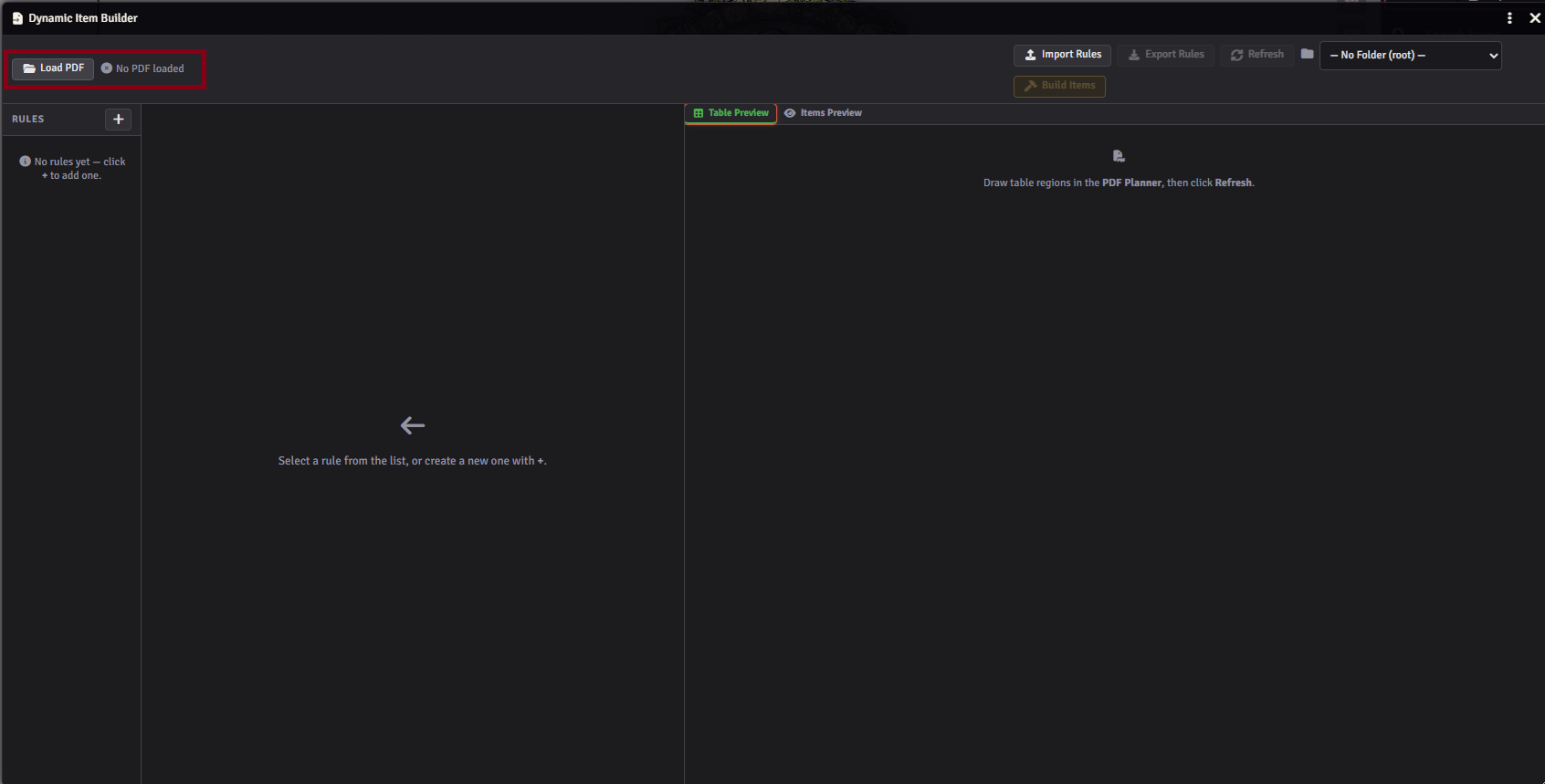
First step in using this module is to click the "Import from PDF" Button in the Foundry Items tab. Next in the upper left corner select Load PDF to select a PDF from your local system to begin pulling items from.
¶ Create new Rule
A "Rule" in the Dynamic Item Builder represents one or more tables of items that all share an item type and foundry ability mappings. This can be any number of things, spread across multiple pages, but must all have the same item type.
IE you may have a rule for "Weapons" and "Armor", that are blanket rules for each of those things, or you may need to split "weapons" into sub categories depending on how your system and book handle things.
¶ Example
- Add new rule
- Change the page of the PDF to the page you want to pull data from
- Select the item type from a dropdown (will be a list of foundry items)
- PDF page Preview
¶ Select: Table Region
Table regions are your main method of pulling data from PDFs. Once the table region tool is selected you can click and drag the region over an item table in your source PDF which will select the appropriate text for the rule. Each rule has its own regions.
¶ Example
This example shows a table region being drawn.
¶ Table Preview
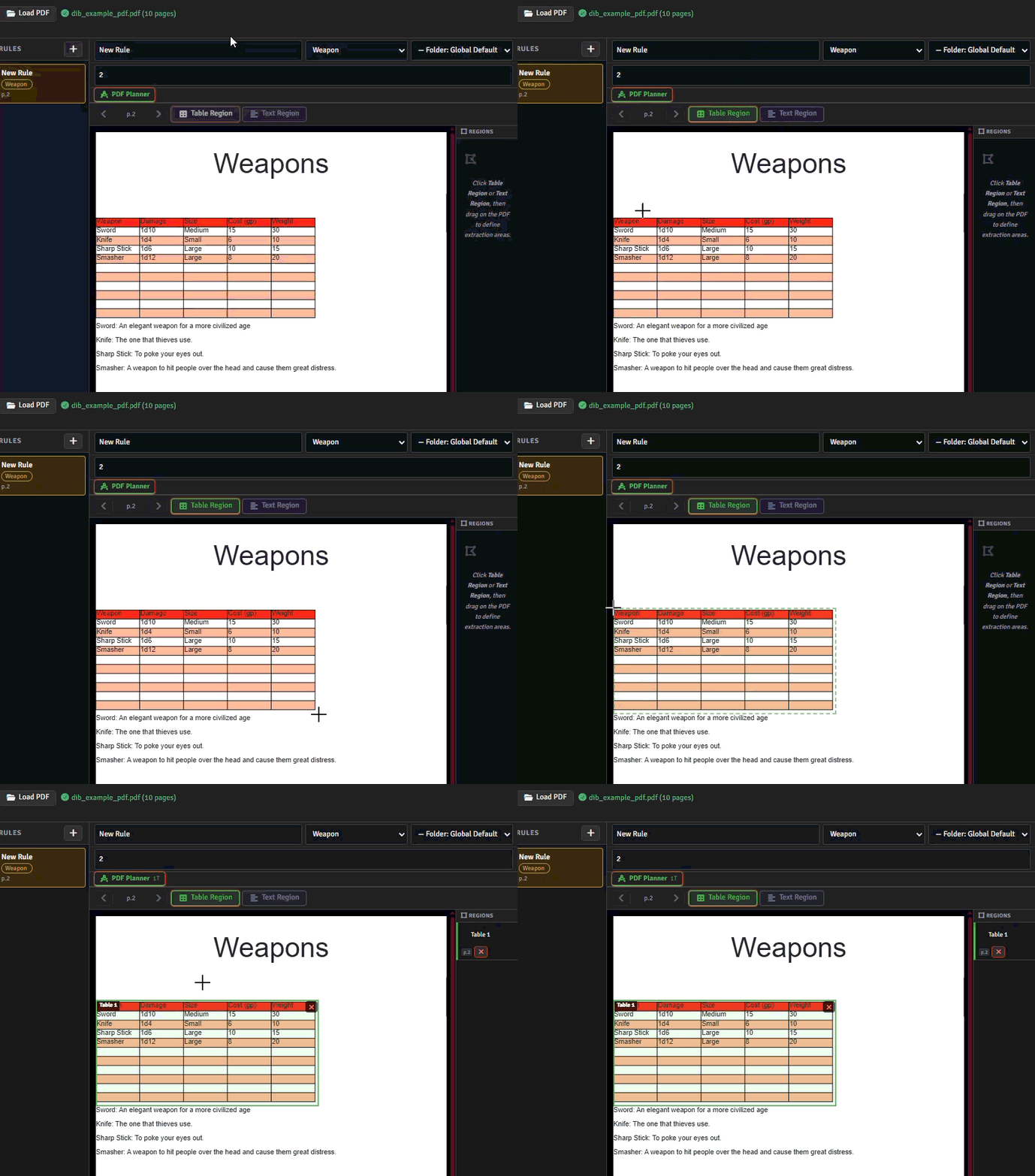
In the right hand side of the tool there is the table Preview tab. This tab shows you a preview of what text is being scanned. Before applying any regions this tab will likely show an attempt to auto scan the page. This should be ignored. Rely on the Table Region to pull the correct text. Once a region is drawn only the text included should show.
You should see a table with column headers in Either Gold or Red to start. These column headers have three states:
- Red: Unlinked,No suggested link
- Gold: Unlinked, Suggested Link Available
- Green: Linked.
If the header is gold, the name of the column header matches, or closely matches a foundry item attribute for the selected item type. The foundry attributes will show in grey text within parenthesis: ()
¶ Example

¶ Linking Attributes
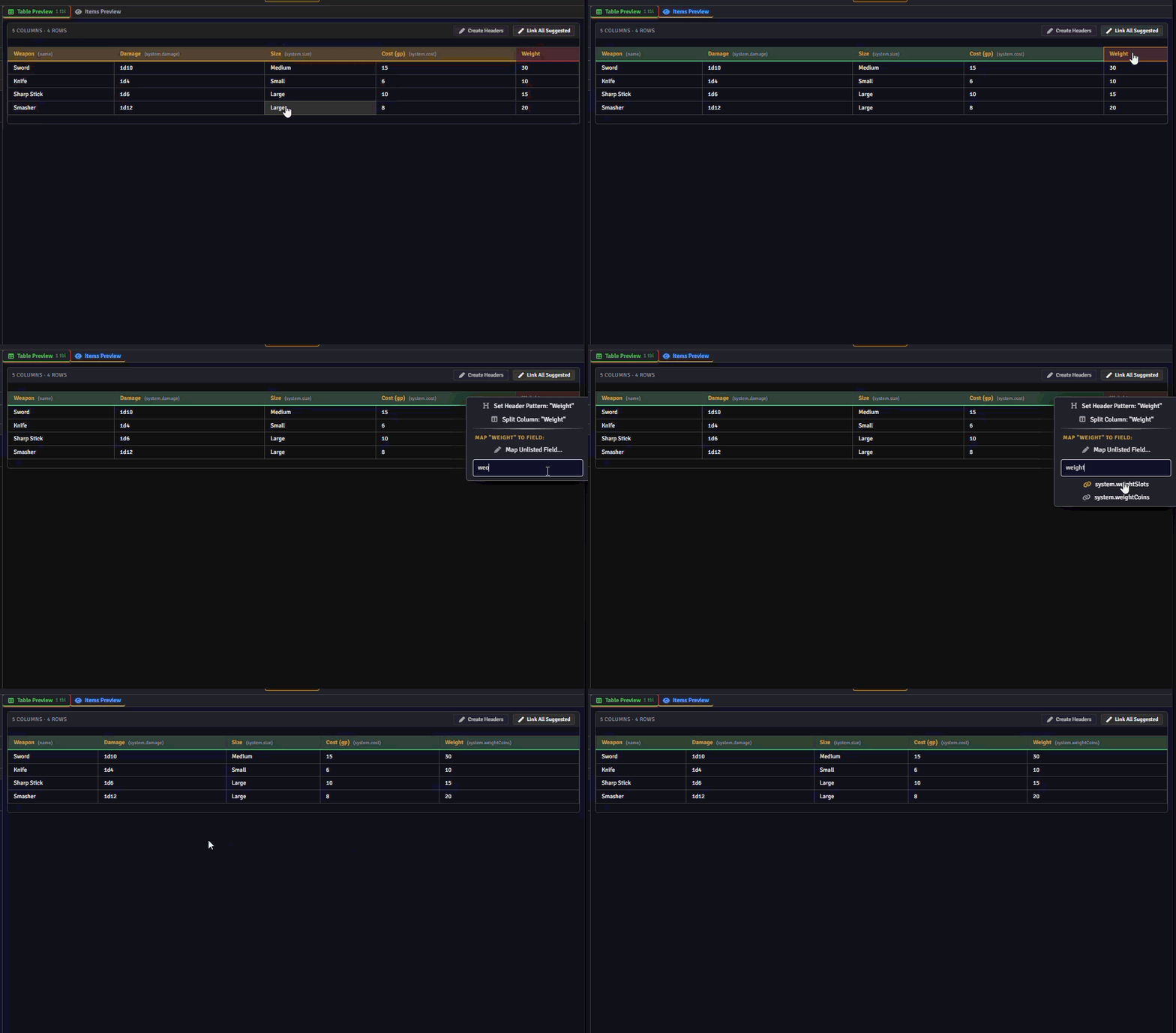
The Main function of the Dynamic Item Builder is to allow you link scanned text with various foundry attributes. By creating the preview table, you've given the module a list of values, we then need to link those values to foundry attributes: IE system.damage so that the module knows what to do with the values once it begins to create items.
If the Suggested attributes seem correct you can click "link Suggested" to automatically link any suggested attributes. Any non correct attributes can be manually linked to an attribute by clicking the header and searching for your desired attributes
¶ Example
¶ Item Preview
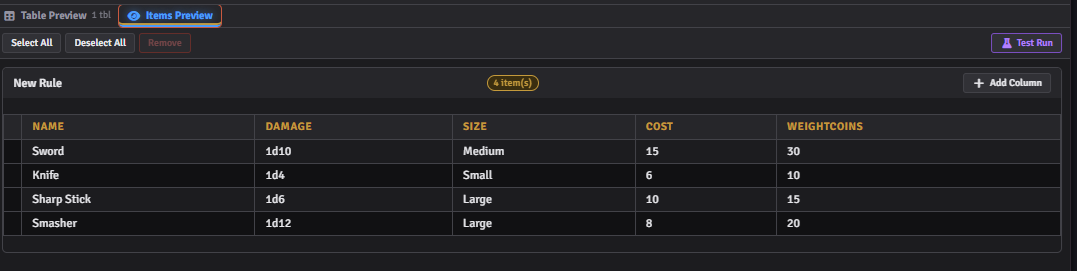
The item preview tab will fill in with information once attributes have been linked. At first glance this may appear to be the same as the Table Preview tab, but this is the other side of the process. Where the Table preview shows raw text pulled from the PDF, the Item Preview shows the actual list of items and values that will be created when the "Build Items" Button is clicked.
The Item Preview tab gives you a last chance to check values and perform manual adjustments.
¶ Example
¶ Test Run
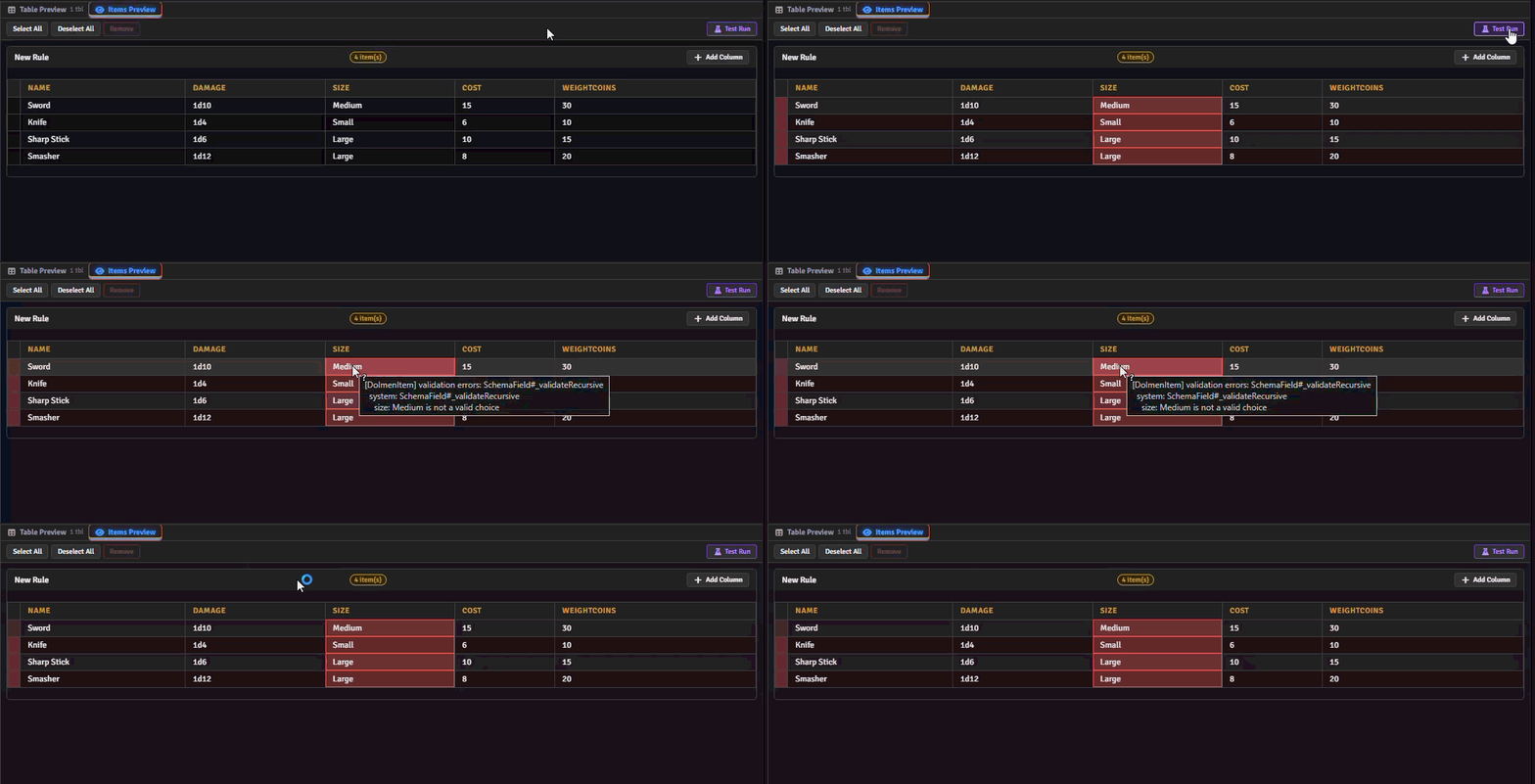
The "Test Run" button within the Items Preview tab will do a dry fit of all your items, without actually creating anything, to see if there are any errors with the values that have been detected. These errors occur when text as written in the books doesn't line up with the way a Foundry System expects to see data input to build an item. This commonly occurs with capital letters where all lowercase is expected, or comma's in large numbers "1,000"
The Test Run Button will highlight any problem area's in red, and provide an error message on hover to give you a hint of the problem.
¶ Example
¶ Fixing Errors
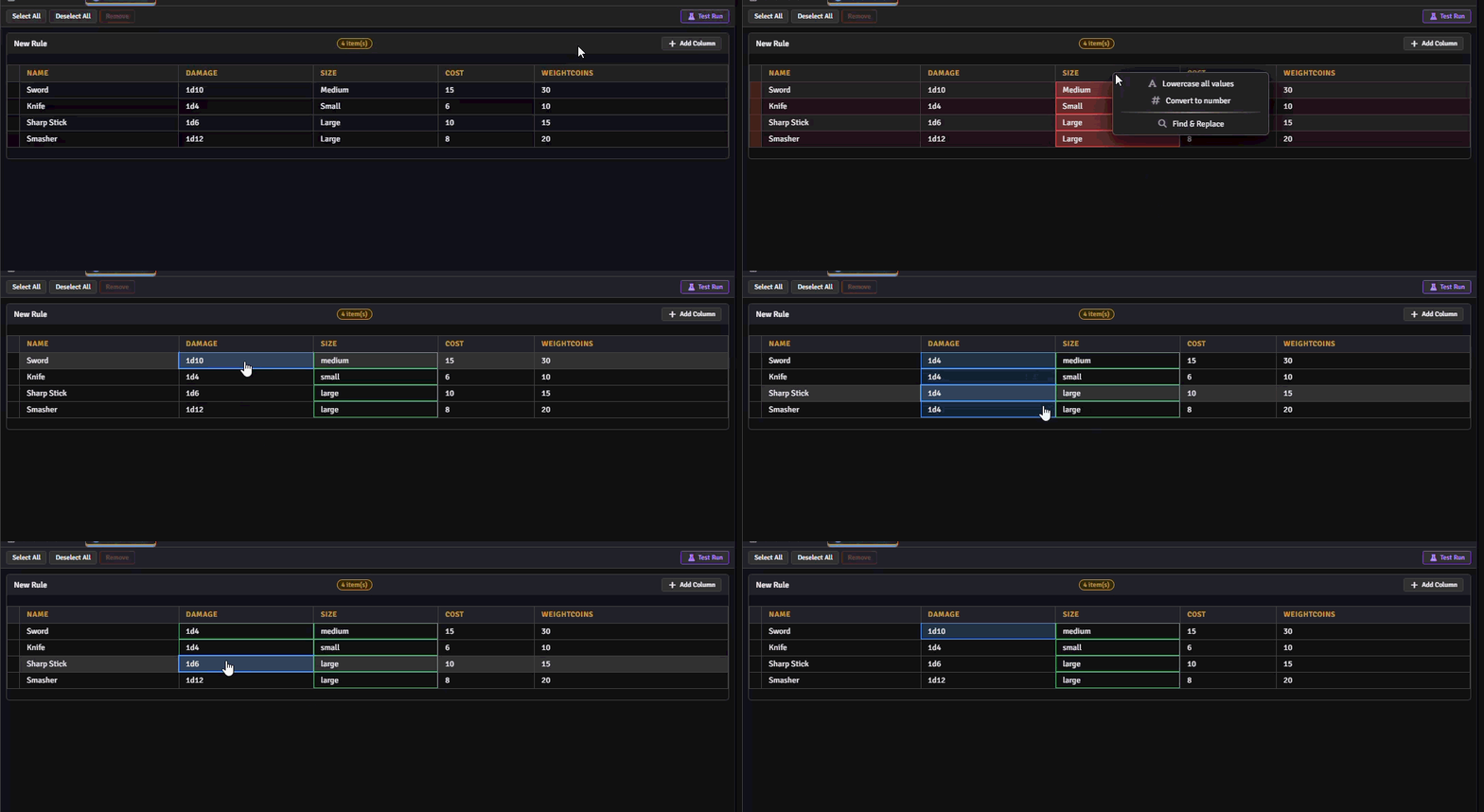
Fixing errors is easy. Any table sell can be clicked to bring up a context menu option to "override Value". Selecting this option will allow you to manually set any value of any cell. Additionally you can click and drag to select multiple sells and override multiple values at once. Lastly if the error is one of the common expected errors (capitalization or incorrect characters in a numerical field) you can click the column header to select "Lowercase All Values" or "convert to number". if the problem is something easily patternable, you can even use the same menu to activate "Find & Replace" to affect multiple rows of data.
¶ Example
¶ Build Items
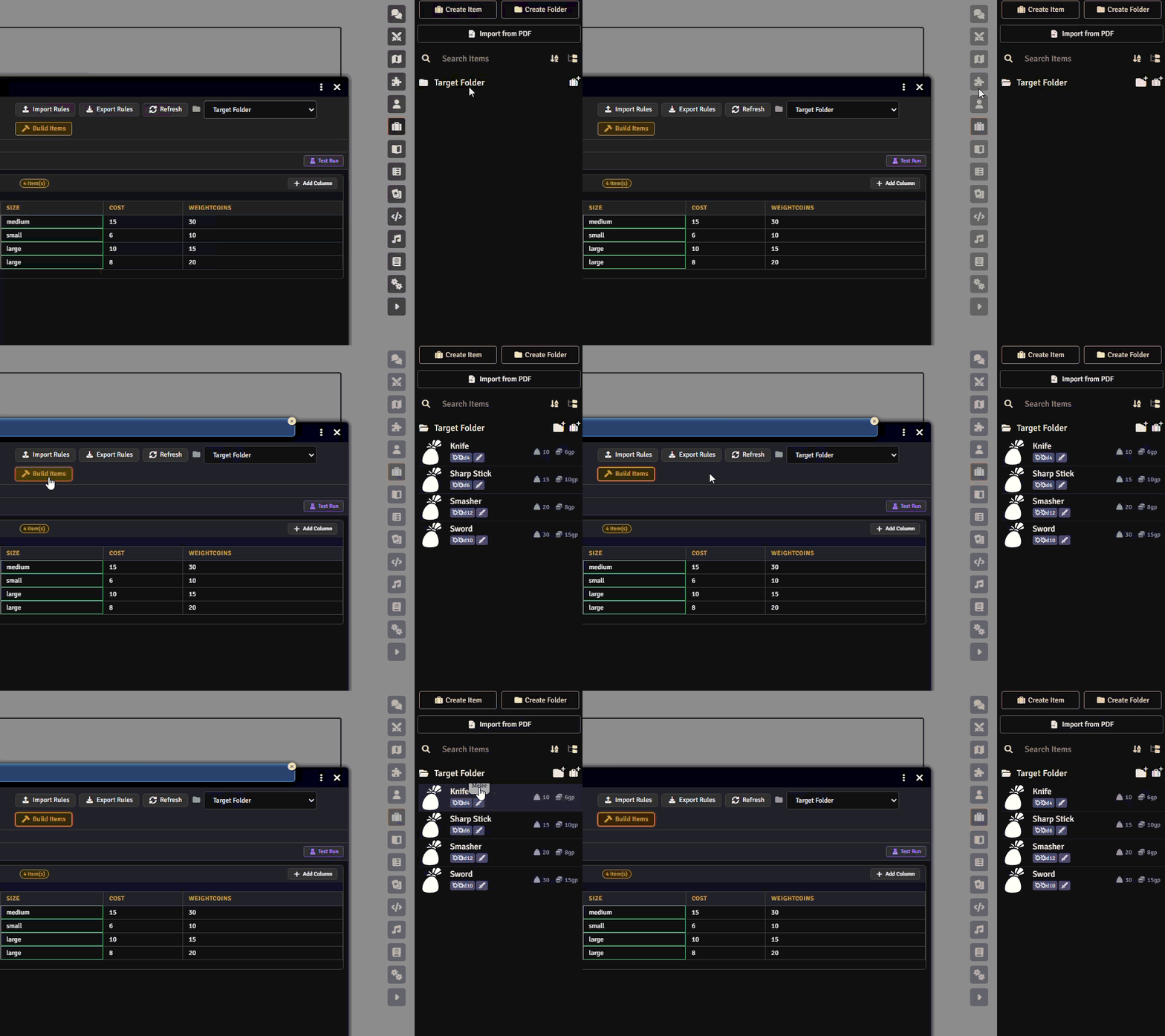
Once all errors are corrected, all that is left is to Click the "Build Items" button. You can also select a folder to build the items into either from the item rule(so each item rule builds to its own folder) or as a global setting in the upper right.
This represents the basic functionality of the module. Additional features will be covered in other sections of this wiki page.
¶ Example
¶ UNDER CONSTRUCTION
Additional sections of this wiki page are still incoming.